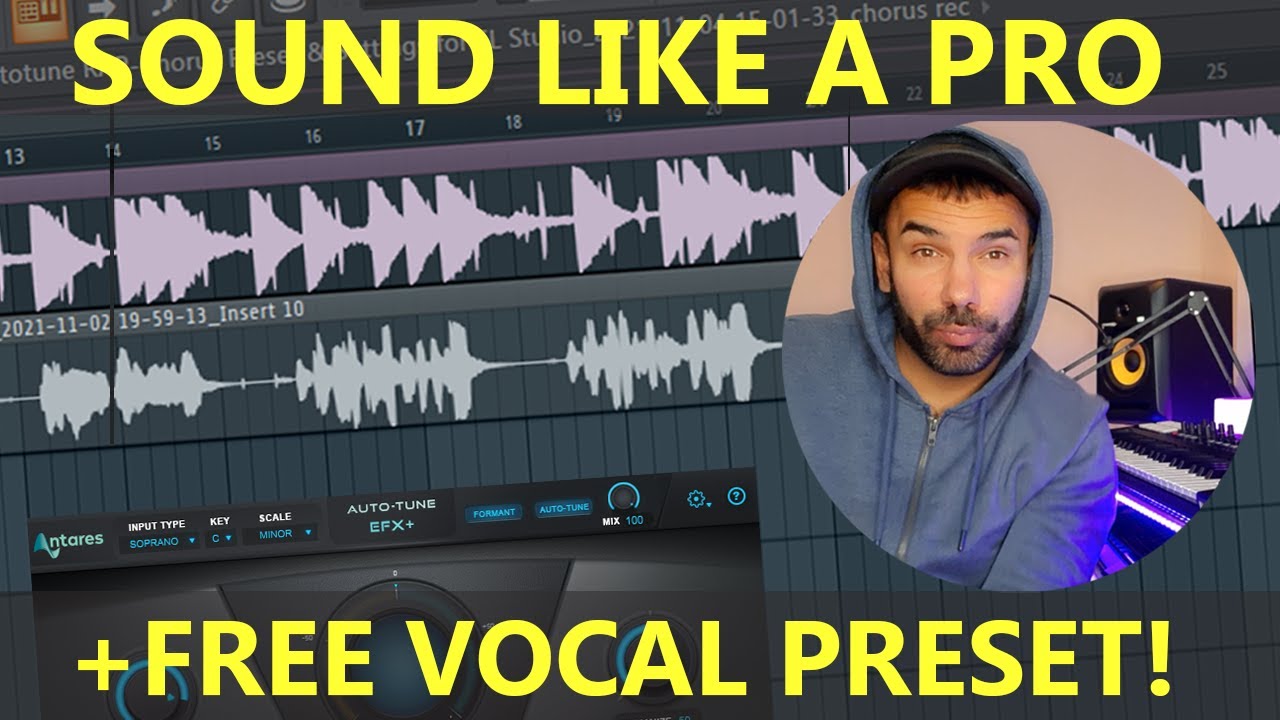
When it comes to mixing vocals and sounding like a pro in FL Studio, use the Antares Autotune VST plugin. It takes more than just staking any effects.
We have made the ultimate universal sound like a pro in FL Studio using a certain type of stackable effect on the channel rack.
If you haven’t already subscribed to our YouTube channel, we have over 89,000+ active subscribers and growing! Never miss a free vocal preset, VST’s, or drum kit!
The main Settings of your (recording channel)
Here are the main settings of the main recording channel “effects stack”. As we can see, Autotune is right at the top, followed by EQ, Soundgoodizer, and then reverb effects.

Stack 1 – Auto-tune EFX
Here below you can see the Auto-tune EFX+ settings. We could have used Auto-Tune Pro or Artist but EFX+ will do just fine for this “Sound Like a Pro” FL Studio stack setup…
Update: EFX+ by Auto-Tune has been updated in their recent update; it only contains vocal effects and has been designed to alter vocal effects in a staggering and diverse way, so we have updated our vocal presets to use Antares Artist instead. Please note, all these settings applied below will need to be added to Antares Artist or Pro; both have the same settings (retune speed and humanize settings features).

- Retune speed set to 2.
- Humanize 50.
- Soprano at top of input type.
- Key (C). This will need to match the current KEY scale of your track, so this may be different for you.
- Scale Minor, This may be a different scale for you, it all depends on your track again.
Stack 2 – Fruity Parametric EQ 2
Click on drop within “Fruity Parametric EQ 2” and then select “Presets“, followed by “Vocal Presence“.
This will load up the correct EQ needed for nice, pro-sounding vocals in FL Studio.

You should have something like this below. (If you don’t see the same graph, try step 2 again).

Stack 3 – Soundgoodizer (Changing the tone slightly)
When it comes to Soundgoodizer, it can add that perfect tone to any vocals. Using mode “A” we add around 60% to 65% input.

Stack 4 – Fruity Reverb 2 (first effect)
When it comes to the Reverb, adding Fruity reverb 2 is just perfect for nice and clear reverb. On the right-hand side, select volume (velocity) input to 60%. Highlighted in red. All other settings on Fruity Reverb 2 stay the same.

Stack 5 – Fruity Reverb 2 (Second Effect)
Using a second stack of “Fruity Reverb 2”, we will add the effect into our channel rack. Again we will leave all the settings as they are, this time turning the velocity (volume) to full 100% Max.

And that is it for the main recording channel, this is the channel that will be used for recording the vocals.
To rescind the vocals using this same channel stack with the channel effects we have created, we will need to make sure to set the “Arm Disk Recording” button on (should be red). This indicates that FL Studio will take input from this channel when recording.

The final post-production channel effects vocal stack in fl studio. (Post Production)
for post-production (after you recorded the vocals) vocal recording channel effects, we will now need to add “fruity multiband compressor” and “fruity parametric 2” to finalize our Vocals.
For fruity multi-band compressors, these are the settings below of low, mid, and high bands. Follow the guideline image shown below.

Using the Fruity Parametric 2 EQ settings below. (Again using the vocal presence preset with eased-up figures)
Simply ease up the vocal presence preset as shown below.

And that is it! You now have your perfect sound-like-a-pro vocal preset for FL Studio.
We hope that you have enjoyed following our how-to-mix vocals in FL Studio step-by-step tutorial.
We have more free vocal presets below, check them out.
- M-Huncho Inspired UK Rap Free FL Studio Vocal Preset
- Free Autotune EFX Vocal Rap Preset for FL Studio
- Lil Baby Auto-Tune EFX in FL Studio Settings
- Making a Ghost Style Backing Voices Producer Tag in FL Studio

Check out our 6 pro FL vocal presets, designed by PAV & ProducersBuzz.